
Quick start
Learn Vandal one goal at a time. Each step teaches you something new, and you can tick it off as you go.
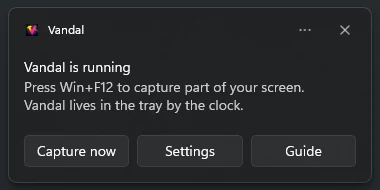
You’ll need Vandal installed and running. If it isn’t yet, download it: it starts in the tray, next to the clock, and a notification tells you it’s ready.
Part 1The basics
Step 1: Take your first screenshot
- Press Win+F12. The screen freezes, exactly as it was: open menus, tooltips and hover effects included.
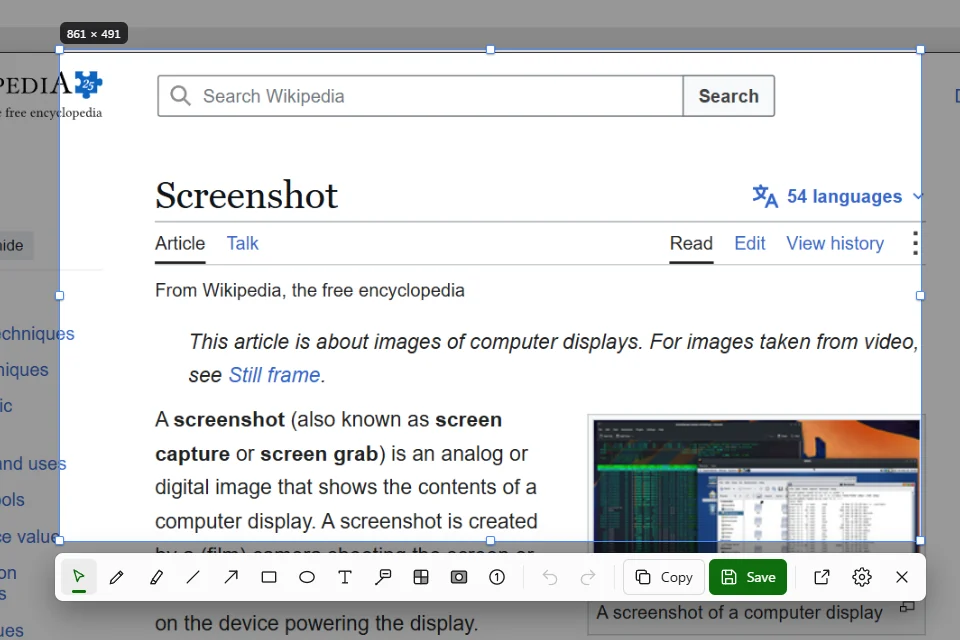
- Drag over the part you want. A label shows its size in pixels.
- Press Enter, or double-click inside the selection.
- Go to your chat or document and paste with Ctrl+V.
Not quite the right area? Before you press Enter:
- Drag the handles to resize it, or drag inside it to move it.
- The arrow keys move it by one pixel, and by ten with Shift.
- Esc or a right-click cancels.
Not a region? Press one of these before you drag: W and click a window, F for the whole screen, or A for all your screens.
Step 2: Point something out
- Press Win+F12 and drag over something you want to point at.
- Press A for the arrow, then drag from where the arrow starts to what it points at.
- Press T for text, click where the label goes and type. Press Esc when you’ve finished typing.
- Made a mistake? Ctrl+Z undoes it.
- Press Enter. The screenshot, arrow and label included, is on your clipboard.
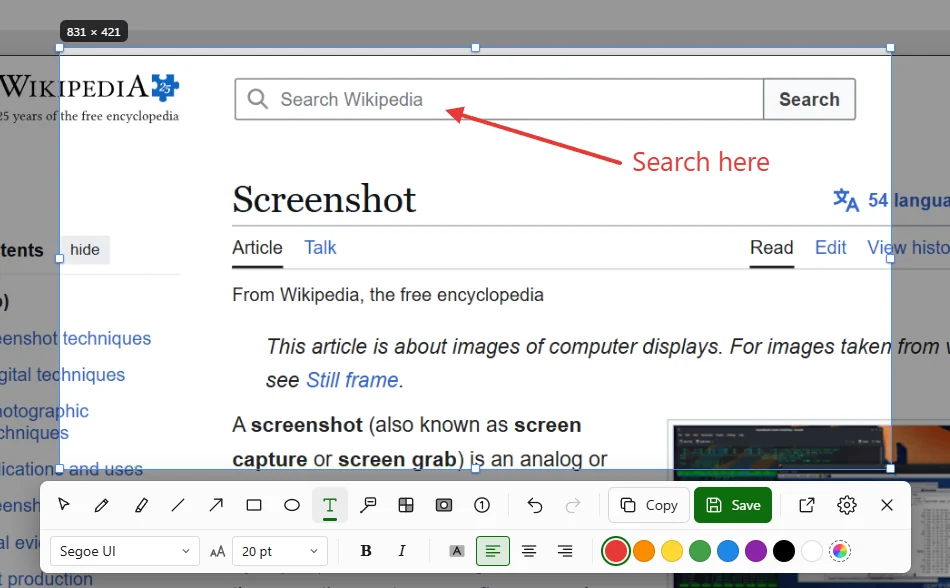
Every tool has a letter: R for a rectangle, H for the highlighter, B to redact. Hover over a tool to see its letter. To change a mark, click it: drag it to move it, or pick another color while it’s selected.
Step 3: Finish it in the editor
- Take a screenshot with Win+F12, and in quick edit press Ctrl+E (or click Open in editor). Your selection and anything you drew come along, still editable.
- Press C for Crop and drag a tighter box. Press Enter to apply it.
- Press N for step markers and click on each thing to do, in order: 1, 2, 3…
- Press O for a callout. Drag from what you’re pointing at to where the text should go, then type.
- Press Ctrl+C to copy the image, or Ctrl+S to save it. Closing the editor copies it too.
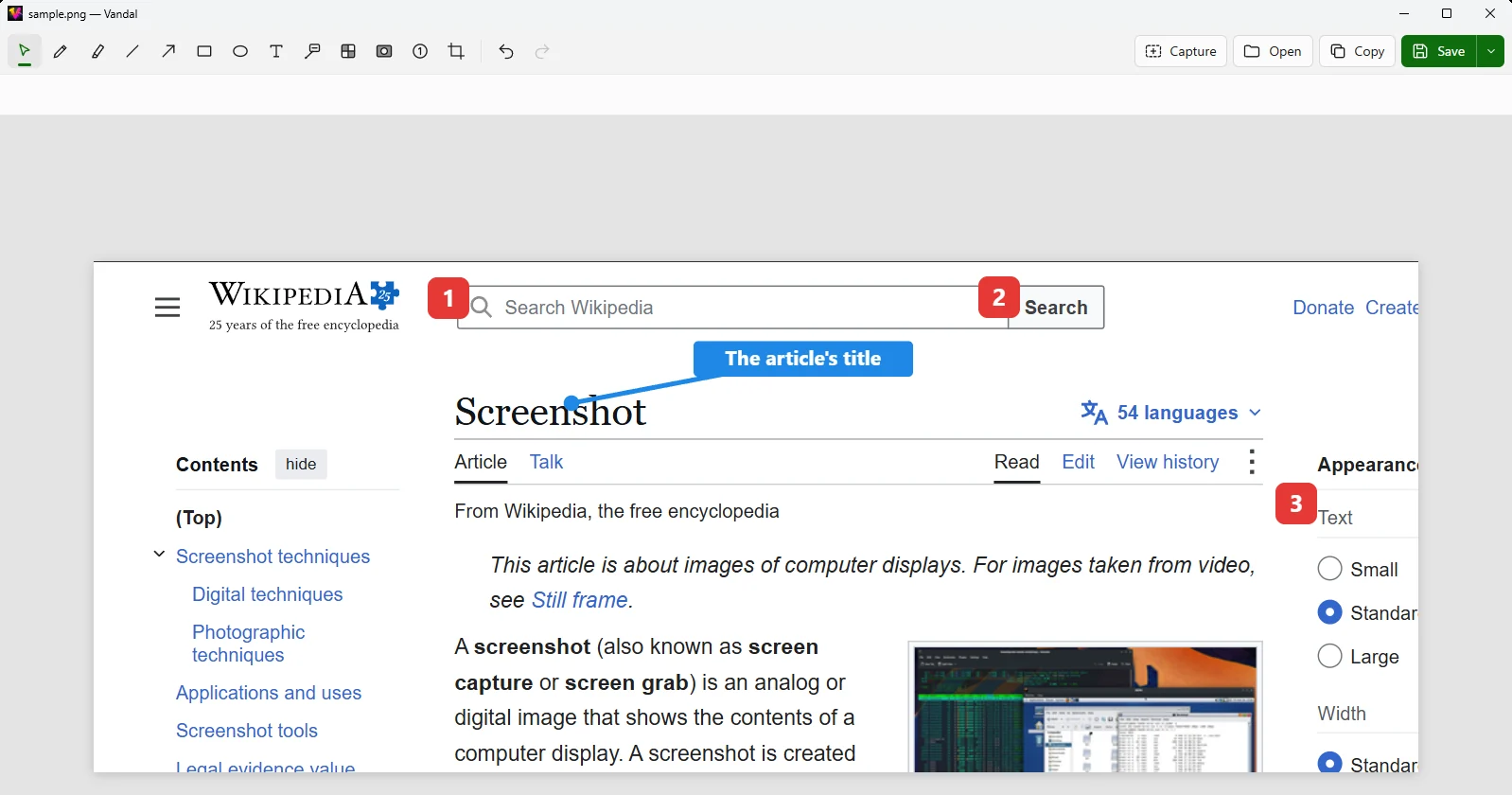
To look closer, zoom with Ctrl and the mouse wheel. Ctrl+0 fits the image to the window again. Hold Space and drag to move around.
Part 2Make it yours
Step 4: Use your brand colors
- Open Settings: right-click the Vandal icon in the tray and choose Settings…, or press Ctrl+, in quick edit or the editor.
- Go to .
- Click a color under Color presets and type your brand color’s hex code, or pick it from the screen with the eyedropper. The + button adds a color, and you can drag colors to reorder them.
- Take a screenshot and pick a tool. Your colors are in the options bar, and Ctrl+1…Ctrl+9 pick them in order.
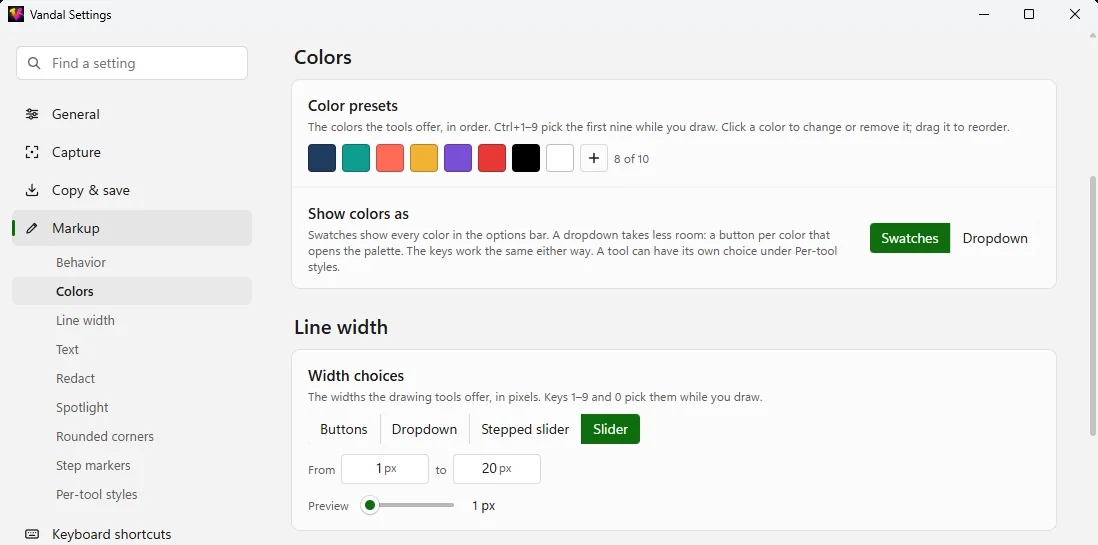
Changes apply straight away, even to a quick edit that’s open behind Settings.
Step 5: Thicker lines for slides
- In Settings, go to .
- Change the Width choices to bigger numbers, such as 4, 8, 12 and 16. The preview shows the control as the options bar will.
- Prefer a slider? Switch the control to Slider and set its range instead. Dropdown and Stepped slider are there too, if the buttons take too much room.
- Back in quick edit or the editor, press 1 to 9 to pick a width while you draw.
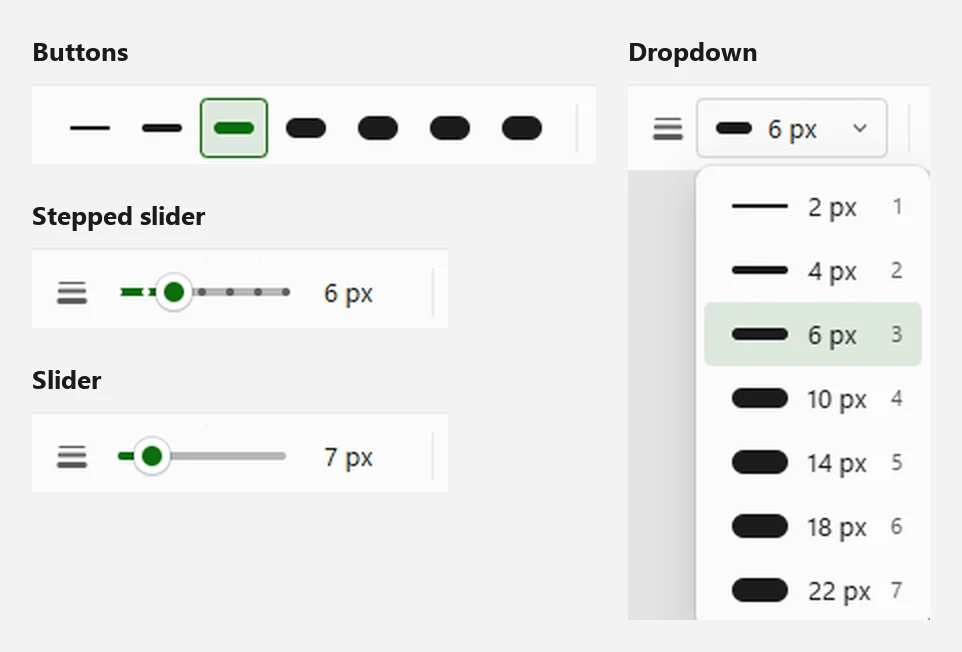
Hold a number key, Ctrl or Alt to see which key picks what: small numbers appear on the options bar. The key left of 1, ` on US keyboards, always picks the thinnest.
Step 6: Hide private information
- Take a screenshot with something private on it, and press B for Redact.
- Drag over what you want to hide. It’s blacked out.
- Or turn on Detect text in the options bar: Vandal outlines the words it finds. Click a word to hide it, triple-click to hide its whole line, or drag across text as you would select it in a document.
- Changed your mind? With Detect text on, click a redaction to remove it.
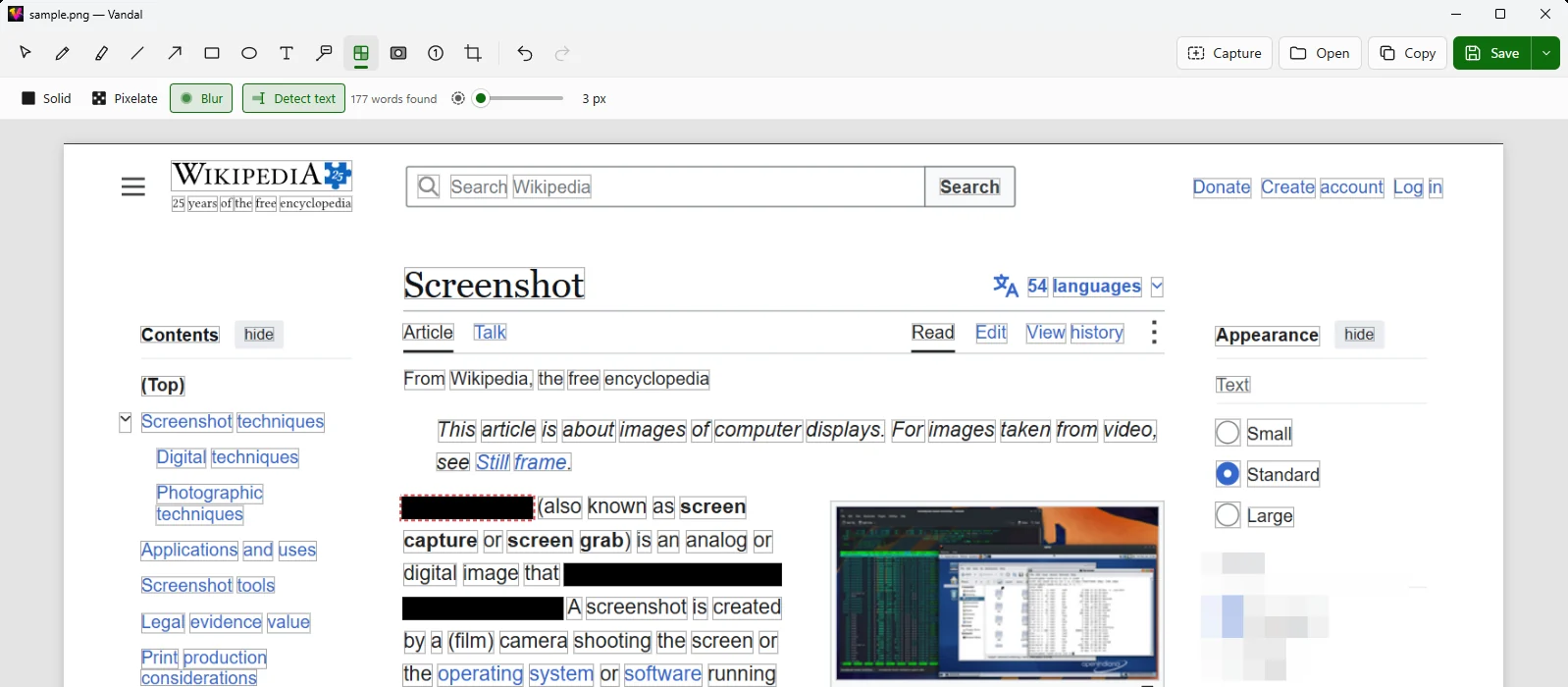
Solid is the default and the safest. Pixelate and Blur look softer, but blurred text can sometimes be read back with the right tools, so keep them for faces and pictures.
Step 7: Make the keys yours
- In Settings, go to .
- Under Capture, click Change next to Capture a region and press the new shortcut. Vandal tells you if another app already has it.
- Under Tools, click Change next to a tool and press a letter, alone or with Ctrl, Alt or Shift. If another tool has that key, Vandal asks before taking it.
- Try it: press your new shortcut, then your tool’s key.
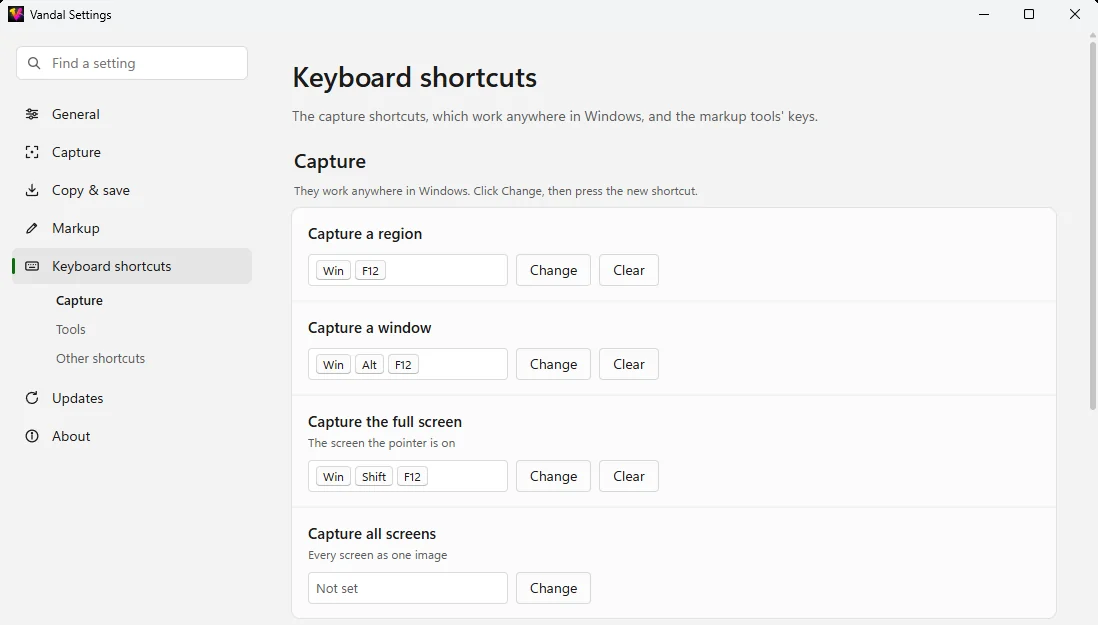
Reset puts a shortcut back the way it was. At the bottom, Other shortcuts lists every other key Vandal knows: a handy cheat sheet.
Step 8: Save every capture automatically
- In Settings, go to .
- Under After a capture, turn on Save to a file automatically.
- Under Where to save, pick the Folder.
- Change the File name if you like. The preview below it shows what the next file will be called.
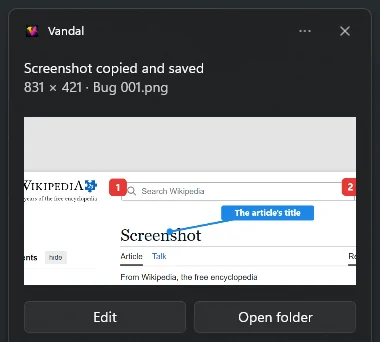
- Take a screenshot. It’s copied and saved, and the notification has a button to open its folder.
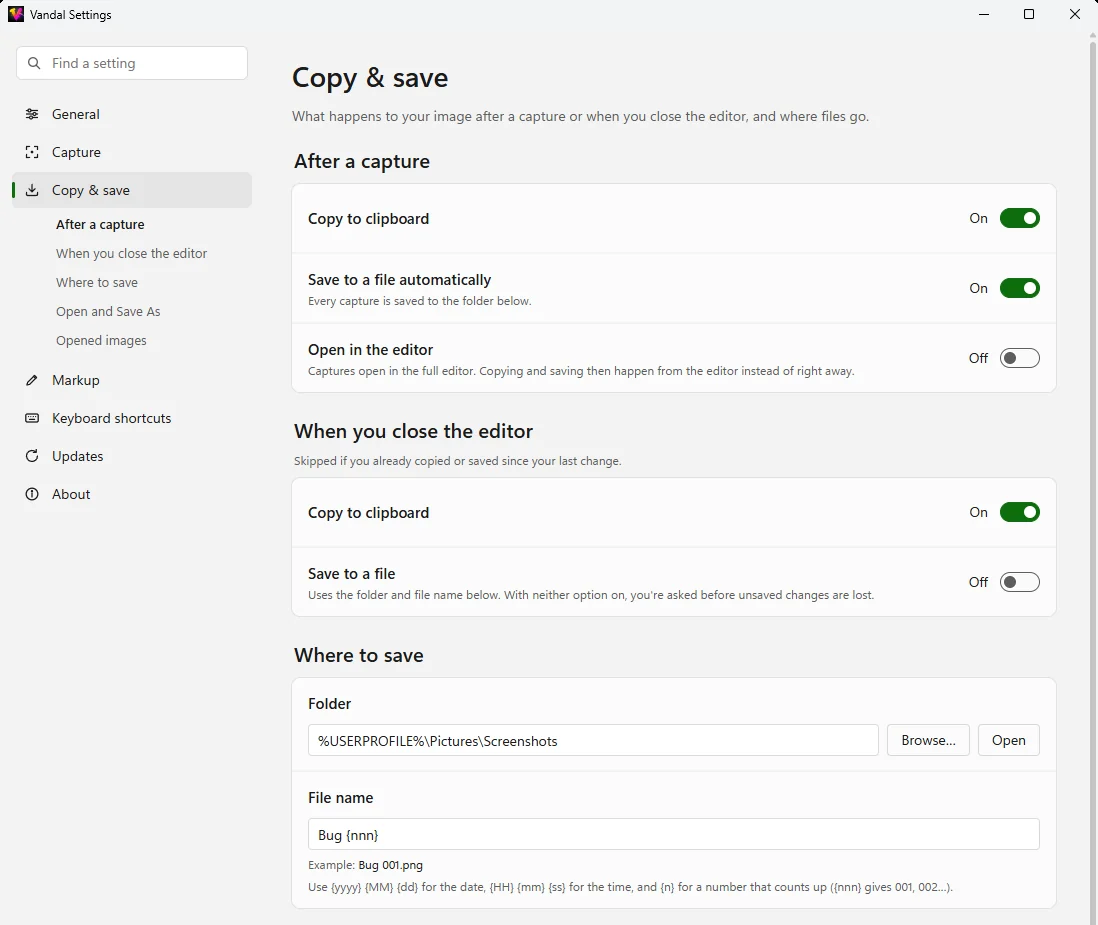
File names are built from a pattern: {yyyy}-{MM}-{dd} is the date, {HH}-{mm}-{ss} the
time, and {n} a number that counts up ({nnn} gives 001, 002…). For example,
Bug {nnn} names your screenshots Bug 001.png, Bug 002.png, and so on.
Step 9: What’s next
You know the essentials. A few more things worth a look:
- Light or dark: sets the theme and the accent color, or follows Windows.
- Whole web pages: the Vandal Screen Capture extension for Chrome and Edge captures a page from top to bottom, and can open it in Vandal.
- Any image: drop an image file on the editor, or press Ctrl+O there, to mark up pictures you didn’t take with Vandal.
- Updates arrive on their own: Vandal tells you when there’s a new version.
- Something odd? Report it on GitHub. It helps a lot during the beta.